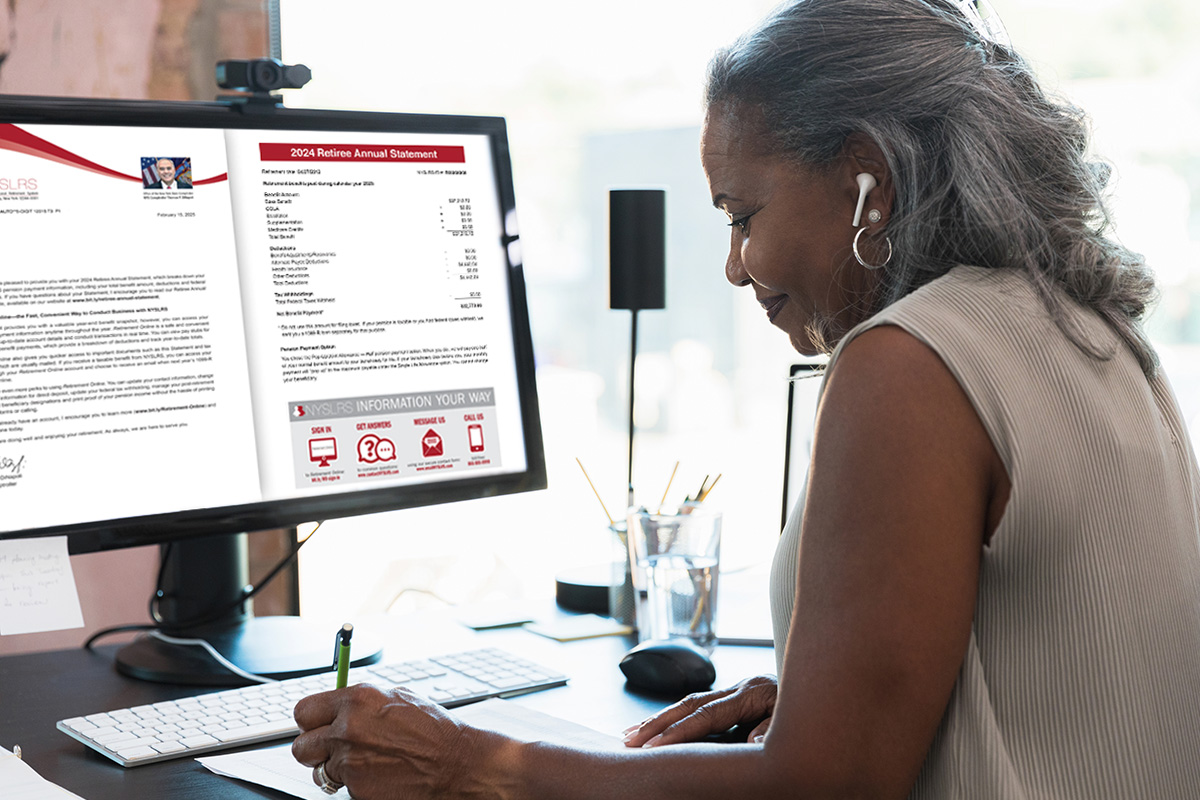

Your Member Annual Statement provides a snapshot of your NYSLRS membership and benefits as of March 31, 2025. We mail printed Statements by the end of June. However, we make Statements available in Retirement Online sooner than printed copies are mailed—and you can sign in to your account now to access yours.
Reminder for retirees: Retiree Annual Statements are available online and we mailed printed Statements by the end of February.
Get Your Statement Online Now
To view, save or print your Statement:
- Sign in to Retirement Online.
- Look under My Account Summary.
- Click View My Member Annual Statement button.
- If Retirement System is blank, click Look Up icon and select ERS or PFRS from dialog box.
- Click Look Up icon next to Calendar Year field and select an option from dialog box. (Note: 2021-2025 are currently available online.)
- Click Generate MAS button.
The document will download on to your computer.
If you don’t have an account or for help signing in to an existing account, check out our Retirement Online tools and tips for step-by-step instructions to register, reset your password, unlock your account and more.

Understanding Your Member Annual Statement
Your annual Statement provides membership and benefit information as of March 31, the end of the State Fiscal Year, including your:
- Service credit;
- Contribution balance;
- Beneficiaries; and
- Retirement benefit projection (if you have enough service).
It’s important to review your Statement carefully and make sure it’s correct. You can use Retirement Online to:
- Update your contact information.
- Change your last name.
- Manage your beneficiaries and update their contact information.
If you have questions about the information in your Statement or for instructions on how to correct information, such as the earnings reported to us by your employer or your date of birth, check out our Member Annual Statement Frequently Asked Questions.
Get an Email Notification for Your Statement
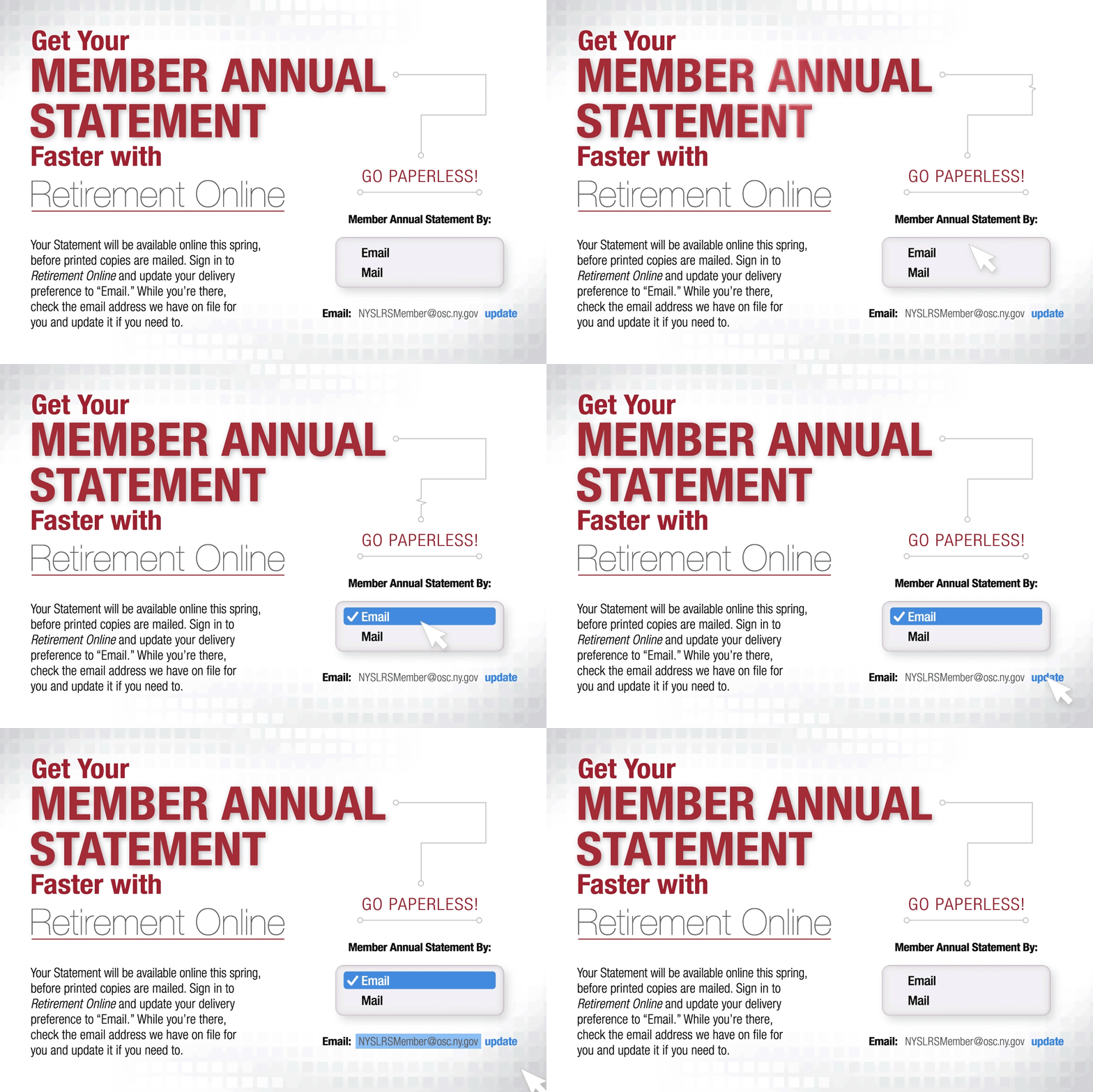
Next year, don’t wait for the mail. You can get access to your Statement sooner and help us ‘go green’ by updating your delivery preference to email. When your Statement is available, we’ll send an email notifying you to sign in to Retirement Online.
- Sign in to Retirement Online.
- Look under My Profile Information.
- Click update next to ‘Member Annual Statement by.’
- Choose Email from dropdown.
Be sure the email address listed in your Retirement Online profile is current.
Note: If you choose email as your delivery preference, you will not receive a printed copy in the mail.
Use Retirement Online
For up-to-date account information throughout the year, sign in to Retirement Online. It’s also the fastest and most convenient way to conduct business with NYSLRS.
- Estimate Your Pension Benefit. Your Statement may include a projection of your monthly retirement benefit. But most members can create their own pension estimates in minutes using Retirement Online. Your estimate will be based on the most up-to-date account information we have on file for you. Enter different retirement dates and beneficiaries to see how those choices would affect your benefit.
- Review Employment History and Service Credit. You can view your recent employment history, reported earnings for the past five years and current total estimated service credit in Retirement Online. If you worked for a participating employer before joining NYSLRS, worked for a public employer that later participated in NYSLRS, or served in the U.S. Armed Forces, you may be able to request additional service credit. You must submit your request before retirement, and you should do it as early in your career as possible—the sooner you purchase your credit, the less it will generally cost.
- Manage Loan Balances or Apply for a Loan. You may be eligible to borrow against your contributions. The fastest way to apply for a NYSLRS loan is in Retirement Online. You can see how much you are eligible to borrow, what the repayment amount would be and whether a loan would be taxable—all before you apply.